| Basic Controls |
Function / Description |
  
 |
Directional arrows to code a path for Blue-Bot to follow.
> Commands appear below the control panel in the command area as you select them.
> To rearrange commands, click and drag the buttons in the command area to change their order.
> To delete a command, click any command already in the command area, then press  to delete it. to delete it. |
 |
Press Pause to make Blue-Bot pause for 1 second. |
 |
Press GO to start (and also stop) the program for Blue-Bot to follow. |
 |
Press Clear to start over and create a new program. |
 |
Press Home to return Blue-Bot to its starting position. |
  |
Press Bluetooth to connect the emulator to a physical Blue-Bot. When connected, the button will glow, and your program runs simultaneously on the robot and on the screen.
> Note: The Bluetooth button appears only in browsers that support the Web Bluetooth API. |
 |
Press Save to save your code. The file is saved to your Downloads folder. |
 |
Press Load to get your work back. |
 |
When checked, the Talk to me! button speaks the name of the activity and the commands as they are run. |
| Advanced Level Controls |
Function / Description |
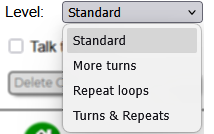 |
> The Standard level is the default starting point for Blue-Bot coding. The controls introduced in the Standard level are available in all levels.
> The More turns level adds  and and  buttons for 45-degree turns. buttons for 45-degree turns.
> The Repeat loops level adds  [Repeat Start] and [Repeat Start] and  [Repeat End] buttons allowing you to repeat a sequence of commands. Place these buttons around the commands you want Blue-Bot to repeat. [Repeat End] buttons allowing you to repeat a sequence of commands. Place these buttons around the commands you want Blue-Bot to repeat.
> The Turns & Repeats level adds BOTH sets of buttons.
Press the [Repeat Start] button repeatedly to cycle through 8 repetitions, then back to 1. Your selected repeat count appears on the button in the control panel (for example,  or or  ). ). |
Have fun!
info
Welcome to the Blue-Bot Explorer Mat!
Using this Explorer Mat, you can:
- turn 45 and 90 degrees
- draw in different colors
- pick up the turtle’s pen and put it down to draw again
- repeat a set of commands
- save your project (it goes into your Downloads folder)
- load it back later if you want to add to it
How many shapes can you draw?
What interesting patterns can you create?
Draw a design and see if a friend can figure out how to code it.
Tip:
To make large designs, you can drag Blue-Bot to a new starting spot (but Home will put it back in the center, not where it started).
Have fun!

 Blue-Bot Explorer